The use of ‘Sizes’ in the system is optional and can be enabled/disabled via the Product Format function. In fact, the very term ‘Size’ is configurable within Online Advantage via the same Product Format definition tool. If ‘Size’ is disabled in your system, then there should be no need to create or maintain a list of them in Online Advantage.
Take a look at the Inventory Schematic for a good visual representation of where Product Sizes sit in the overall Inventory hierarchy.
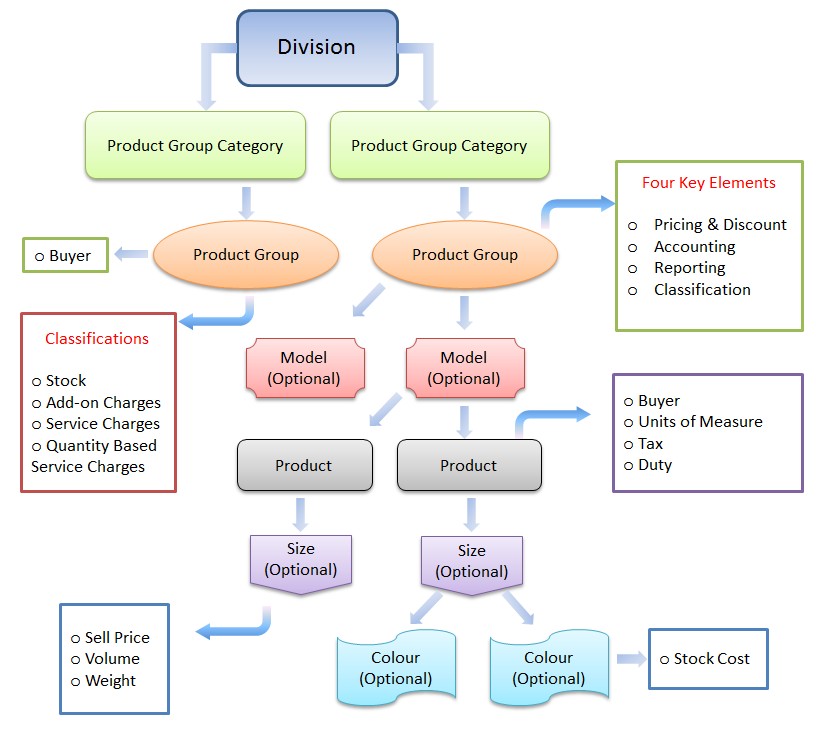
The Sizes list may be used in conjunction with the Product Details function to uniquely define a product and the size(s) it is available in. If a product has sizes recorded against it, wherever that product is entered, the list of sizes for that product is available for selection. In the system, Costs and Prices are recorded against individual sizes. It should also be noted that if you are using barcodes, then each size on the product requires its own barcode identifier.
Against Product Details you may also define a ‘Selling Unit Conversion’ for a particular size for the Product that is then used in ‘Order Entry’ as an override to the Sales Selling Unit for the Product.
Also in Product Details , you can define Manufacturing Repacks by Size. These are for use when you manufacture a product in some ‘bulk’ size (or form), and then you need to re-pack it from that ‘bulk’ form into smaller size units like e.g. from a mixing “Vat” into individual ‘Cans’, ‘Tubs’, ‘Pails’ or ‘Tins’.
Example
The choice of using sizes is a complex one. There are a number of benefits to using sizes like the reduced maintenance of common details for each item. But on the other hand, not all systems provide this advanced feature so interfacing to supplier and/or customer systems and third-party products can be more difficult with sizes enabled. We always suggest contacting our implementation and consultancy team to review the requirements before making a decision to use Sizes.
Products without size
Establish individual product codes for each size e.g.
- Product code = SUNSCR250 – Product Name = Sunscreen 250ml
- Product code = SUNSCR150 – Product Name = Sunscreen 150ml
Products with size
Establish one product code with size options e.g.
- Product code = SUNSCR – Product Name = Sunscreen
- Colour options: 150ml, 250ml etc.
Minimum Requirements
It is not necessary to set up any ‘size’ codes to create Products, though you should take time to consider whether defining your products with or without sizes is the right choice for your business.
Changing Established Data
If you started with ‘Sizes’ turned off system wide, then it is safe to turn sizes on and add sizes to products at any time.
When turning sizes off, issues can arise because inventory data is captured per product-size-colour item.
If sizes are on, you can add sizes to products at any time, but there are things to take into consideration.
For example, if you initially established a product code to represent ‘sunscreen’ with no distinction on size and you have 40 on hand, then you decide you want to add sizes of ‘150ml’ and ‘250ml’, then you must transfer the 40 on hand recorded under ‘no size’ to either ‘150ml’ or ‘250ml’. Then you would need to do a stock take transaction to record the stock on hand quantity for each of ‘sunscreen/150ml’ and ‘sunscreen/250ml’.
When allocating sizes to an existing product that is in use, you also need to consider any outstanding Purchase Orders, Shipment Receipts, Sales Quotes, Draft Orders, Sales orders and Transfer Orders (esp. in-transit orders) as all of these could have the non-sized product recorded against them.
Panel Options
- Standard panel features
- Maintenance
- Views
- Audit – an audit trail of the data changes made over time to the size code currently being viewed
- Products in this size – lists Products with the size code currently being viewed.
- Discontinued sizes – lists sizes that have been flagged as discontinued
- Reports
- List Sizes
- Products Where Sizes Used